
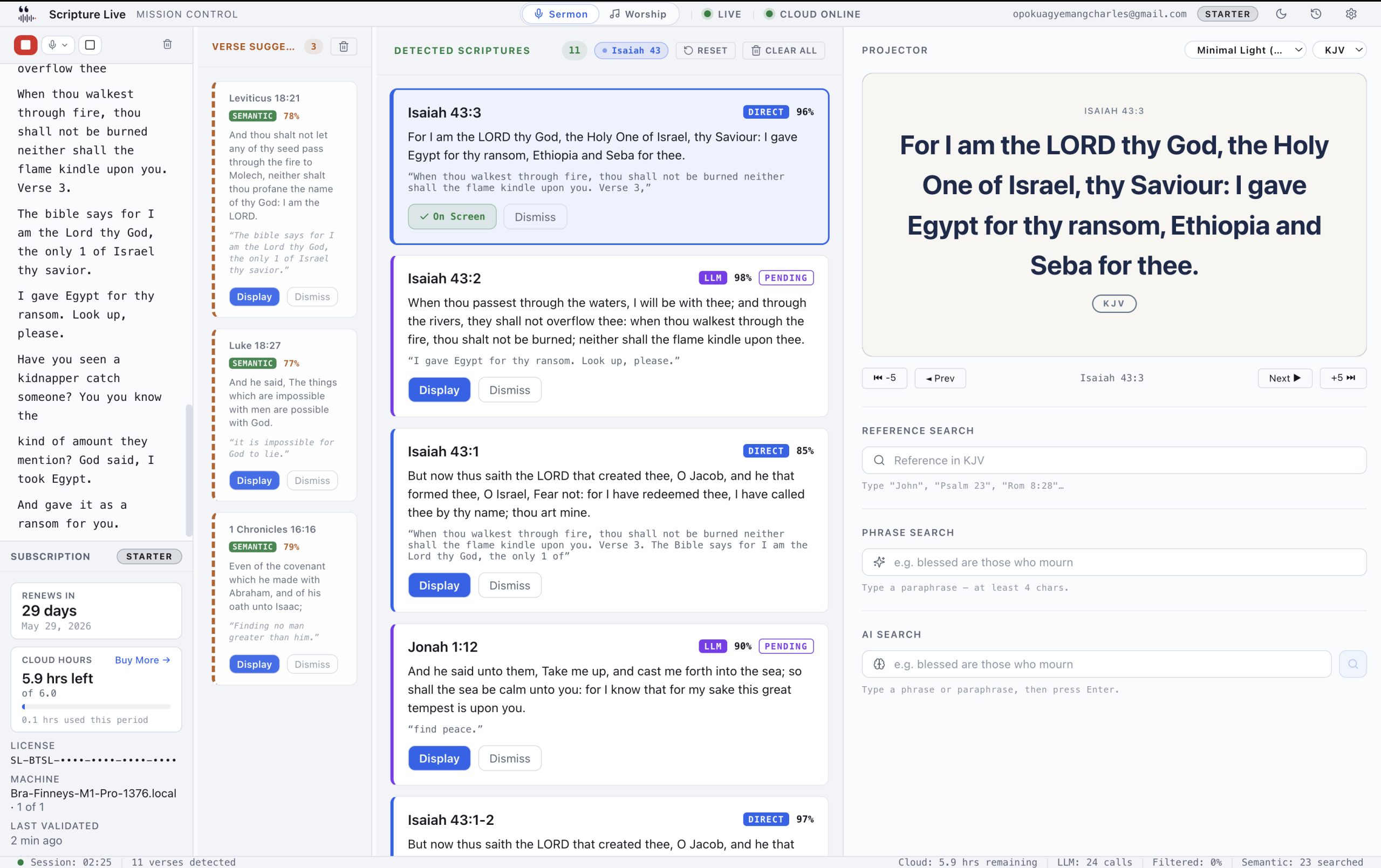
How to display offering details and QR codes on your church projector
TL;DR
– Build a Custom Slide with QR codes for Mobile Money / Paystack / bank transfer.
– Slide stays on the projector through the offering — no live recitation of long short codes.
– Same slide flows to the OBS feed, so online viewers can scan from their phone too.
The pastor finishes the call. “If you’d like to give today, you can use Mobile Money on…” — and at this point in approximately every Ghanaian church we’ve ever visited, the announcement turns into a verbal recitation of a 12-digit short code, a bank account number, and at least one merchant ID. Three sentences in, half the congregation has already given up trying to remember it. The other half is fumbling through last week’s bulletin looking for the same information they couldn’t find last week. Putting offering details on the church projector solves this — and it’s one of the cases where Scripture Live’s Custom Slides feature earns its keep, because the alternatives (PowerPoint, screenshot of a banking app, a hand-written sign) all have specific failure modes.
This is a walk-through. Not theoretical. By the end you’ll have a “How to Give” slide deck in Scripture Live, ready to display during any service, with the right typography, the right image fit mode for QR codes, and a privacy posture that keeps your account numbers off the cloud.
The offering moment problem
Three things go wrong with the verbal-only approach:
Information density. A typical Ghanaian church gives across multiple rails: MTN MoMo merchant code, AirtelTigo Money short code, Vodafone Cash, GCB / Ecobank / Stanbic bank account, sometimes a USSD code, increasingly a QR code. That’s six to eight distinct numbers, and the human brain can hold ~7 ± 2 items in short-term memory under ideal conditions. A pastor recitation under sermon-momentum conditions is far below ideal.
Repetition cost. Pastors give the same announcement every week. Verbal repetition wears the message down — the congregation tunes out. Visual reinforcement keeps it fresh.
Cross-service consistency. Different pastors give the same announcement with different details (“did he say short code or merchant ID?”). A standardized slide eliminates the operator-dependent variance.
The solution is to make the projector show the giving details every time the pastor announces giving. Author the slide once; display it with one click for the next two years.
The old workarounds and their failure modes
Before we walk through the right way, briefly: why not the workarounds?
PowerPoint. Works, sort of. The failure is workflow — PowerPoint and your projection tool fight over the projector. Switching between worship lyrics on Scripture Live and an offering slide on PowerPoint is a screen-juggling exercise. If you’re using a real church-tech stack, the offering slide should live in the same tool.
Screenshot of the bank app. Tempting, terrible. Banking apps redesign their UIs; your screenshot goes stale. Mobile Money short codes change format. The screenshot is also too low-resolution to read at 30 feet, and the bank’s internal navigation chrome is on screen for no reason.
Pre-printed bulletin. Useful as backup, not a replacement. People throw bulletins away. People don’t bring them when they come back for a midweek service. The bulletin is an artifact; the projector is the live signal.
Hand-written sign on the offering box. Real. Common. Affecting in its sincerity. Not legible from the back row.
The right answer is the same answer you use for everything else on screen: a slide, in your projection tool, ready to go.
The Scripture Live solution: Custom Slides
Custom Slides is Scripture Live’s general-purpose “anything that’s not a Bible verse and not a song” slide tool. It supports two slide types — text and image — and they compose cleanly. For offering, you’ll use both: text slides for short codes and bank details, image slides for QR codes.
If you’re new to the feature in general, the custom slides guide is the foundational walk-through. This article is the offering-specific application.
Walk-through: build a “How to Give” slide deck
A reasonable opening deck has 3-4 slides:
- Cover slide — “How to Give” headline, one line of context
- Mobile Money slide — short codes for MTN / AirtelTigo / Vodafone (or your country’s equivalents)
- Bank slide — account number, bank name, branch, USSD code
- QR code slide — scannable code that links to a giving page or short-code dial
Build it once. Reuse forever.
Slide 1 — Cover.
In Scripture Live, open the Custom Slides workspace. Create a new text slide.
- Title:
How to Give - Body:
Thank you for partnering with us. Here's how: - Theme: pick the same one you use for scripture (consistency reads as professionalism).
The cover slide is the thirty-second context slide. Pastor says “if you’d like to give”; cover slide goes up; pastor delivers the heart-of-giving line; operator advances.
Slide 2 — Mobile Money.
Create a second text slide.
- Title:
Mobile Money - Body (use line breaks):
MTN MoMo: *170*XXX*XXXX#AirtelTigo Money: *110*XXX*XXXX#Vodafone Cash: *110*XXX*XXXX#Merchant ID: XXXXXX
Replace the X-placeholders with your actual short codes and merchant ID. The line-by-line format is deliberately scannable from the back of the sanctuary.
A typography note: Custom Slides’ default theme renders short codes in a way that’s legible at projection distance. Don’t over-style this. The typography that comes with the theme is correct.
Slide 3 — Bank.
Third text slide.
- Title:
Bank Transfer - Body:
[Church Name]Account: 1234567890Bank: GCB BankBranch: SpintexUSSD: *424*XXX#
Same logic. Line-by-line, no font heroics.
Slide 4 — QR code.
This one is an image slide. The image fit mode matters.
- Image: upload a high-resolution PNG of your QR code. Generate it once at 1024×1024 minimum — QR scanners need pixel density.
- Image fit mode: Fit (not Fill, not Crop).
The fit mode is critical. Scripture Live’s image slides offer three modes: Fit (the whole image is visible, with letterbox if aspect ratios don’t match), Fill (the image fills the screen, cropping if needed), and Crop (operator-defined crop region). For QR codes, always pick Fit. Fill or Crop will cut off the QR positioning markers in the corners, and a QR code with missing corners is a QR code that doesn’t scan.
Test the QR code with three different phones before you trust it on Sunday. iOS Camera app, Android Camera app, and a third-party scanner. If all three resolve the code from 20 feet away, you’re good.
Multiple offering moments, multiple slide decks
Many churches have more than one giving moment. Common patterns:
- Regular tithe and offering — the standard “How to Give” deck
- Building fund — separate fund details, sometimes a different bank account
- Special offering (mission, benevolence, holiday) — purpose-specific deck
- Children’s church / youth offering — age-appropriate framing
Build a separate deck per moment. Tag them clearly in your Custom Slides library. The operator picks the right deck for the right moment of the service. Don’t try to cram all four into one universal “How to Give” deck — the cognitive load on the congregation is exactly what visual segmentation is meant to reduce.
The display-doesn’t-disrupt-lyrics property
Here’s a non-obvious detail. If you’re streaming, Scripture Live runs two independent browser-source feeds: scripture (localhost:5544) and lyrics (localhost:5545). Custom Slides display on the scripture feed by default. That means the worship band can be transitioning out of the closing song — lyrics still on the streaming feed — while the in-room projector switches to the offering slide.
In practice: the worship leader holds the last chord of the closing chorus, the operator switches the in-room projector to the offering slide, the streaming team sees the lyrics fade out and the offering slide fade in (because they’re following the in-room main feed for the broadcast), and nothing about the song’s resolution gets cut short.
For the streaming-team setup specifically, the OBS browser source and church streaming guide covers the multi-feed routing in detail. The point here is that Custom Slides participate in the same feed architecture as scripture and lyrics — they’re not a second-class citizen.
A privacy note
Account numbers stay local. Custom Slides — including the bank details, short codes, and any QR images you upload — live in the local database on the booth laptop. Nothing in this part of the product syncs to a cloud backend. Even on paid tiers, your offering details aren’t stored on any server we operate.
The only data that leaves the laptop is the cloud Reasoning Layer’s transcript fragments during sermon detection (and only on paid tiers, only during active sessions). Custom Slide content never goes through that path.
This matters for two reasons. First, smaller churches often have anxiety about their financial details “going to the cloud” — and in this case, the anxiety is technically misplaced because the details simply don’t go anywhere. Second, multi-branch churches with separate accounts per branch can configure each branch’s slides independently without worrying about cross-contamination — every laptop has its own slide library.
A few practical tips
A handful of things we’ve learned from churches running this in production.
Theme consistency. Use the same theme for offering slides as for scripture. Visual consistency communicates “this is intentional” rather than “the operator just made this up”. The Classic Dark theme works for almost everyone; the Warm theme is a good alternative for churches with warmer brand palettes.
Number formatting. When typesetting bank account numbers, use spaces every four digits — 1234 5678 9012 reads faster than 123456789012. The same applies to long short codes.
Currency. If your church accepts gifts in multiple currencies (common for diaspora-supported churches), have a separate slide per currency. Don’t mix GHS and USD on the same slide.
Update cadence. Bank short codes and merchant IDs change occasionally. Audit your slides quarterly — pull up each one in the operator preview, confirm the codes still work, update the X-placeholders if anything has changed.
Offline mode compatibility. Custom Slides is a free-tier feature. Even if you’re not on a paid plan, this entire workflow is available. The free Offline Mode article covers what’s included; offering slides are part of it.
FAQ
Can I display offering details and lyrics at the same time? Not on the same screen, but on different feeds yes. The streaming feed can show lyrics while the in-room projector shows the offering slide, or vice versa. Within a single feed, slides display one at a time.
Will the QR code work for everyone in the room? From the front rows, yes — modern phone cameras scan QR codes from 30+ feet at projector resolutions. From the back of a 500-seat sanctuary the angle gets steep; print a small QR card with the same code to distribute alongside.
Can I animate or video-loop the offering slide? Custom Slides are static today — text slides are text, image slides are image. We don’t ship video playback. If you need a looping animated giving slide, build it in a video tool, render to MP4, and play through OBS as a separate source.
How do I avoid showing offering details when guests are joining online from another country? Build a region-specific deck. Some churches have a “Diaspora Giving” slide with international transfer details (bank wire, PayPal, Stripe link), separate from the local Mobile Money deck.
Can I export the deck to share with another campus? Custom Slides export as a JSON-ish bundle today (no media re-uploaded — the QR code image needs to be transferred separately). Multi-campus churches typically build the deck once on the lead campus laptop and copy it across.
The offering moment is one of the underrated wins of having Custom Slides in the same tool as your scripture and lyrics workflow — the slide is one click away, the typography matches the rest of your service, and the account numbers stay on your laptop. If you’ve been juggling PowerPoint and screenshots for this, the free version at scripturelive.app covers it natively. Build the deck once on a Saturday afternoon and stop reciting short codes for the rest of the year.
Related reading
- Custom slides: sermon notes + prayer points
- OBS browser source guide
- A Bible projection app for African churches
Try Scripture Live
Free Offline Mode includes the KJV and Twi Bibles, reference and phrase search, custom slides, and the OBS browser-source feed — install on as many machines as you want, no account needed.
📥 Download: scripturelive.app
💵 Pricing: scripturelive.app/pricing










Leave a Reply