
OBS browser source for church scripture and lyrics: a streaming-team guide
TL;DR
– Two independent local feeds: scripture onlocalhost:5544, lyrics onlocalhost:5545.
– Add?transparent=truefor camera overlays. No NDI tier upgrade. No screen capture.
– Two operators can work independently — sermon notes in-room, lyrics on stream.
Sunday morning. The streaming PC is humming, OBS is up, the worship set is starting in twelve minutes. Your scenes are mostly there — Pre-Service Loop, Worship, Sermon, Communion, Outro — but there’s one thing that’s never quite worked: how do you get the scripture references and worship lyrics overlaid on the broadcast in a way that’s actually clean?
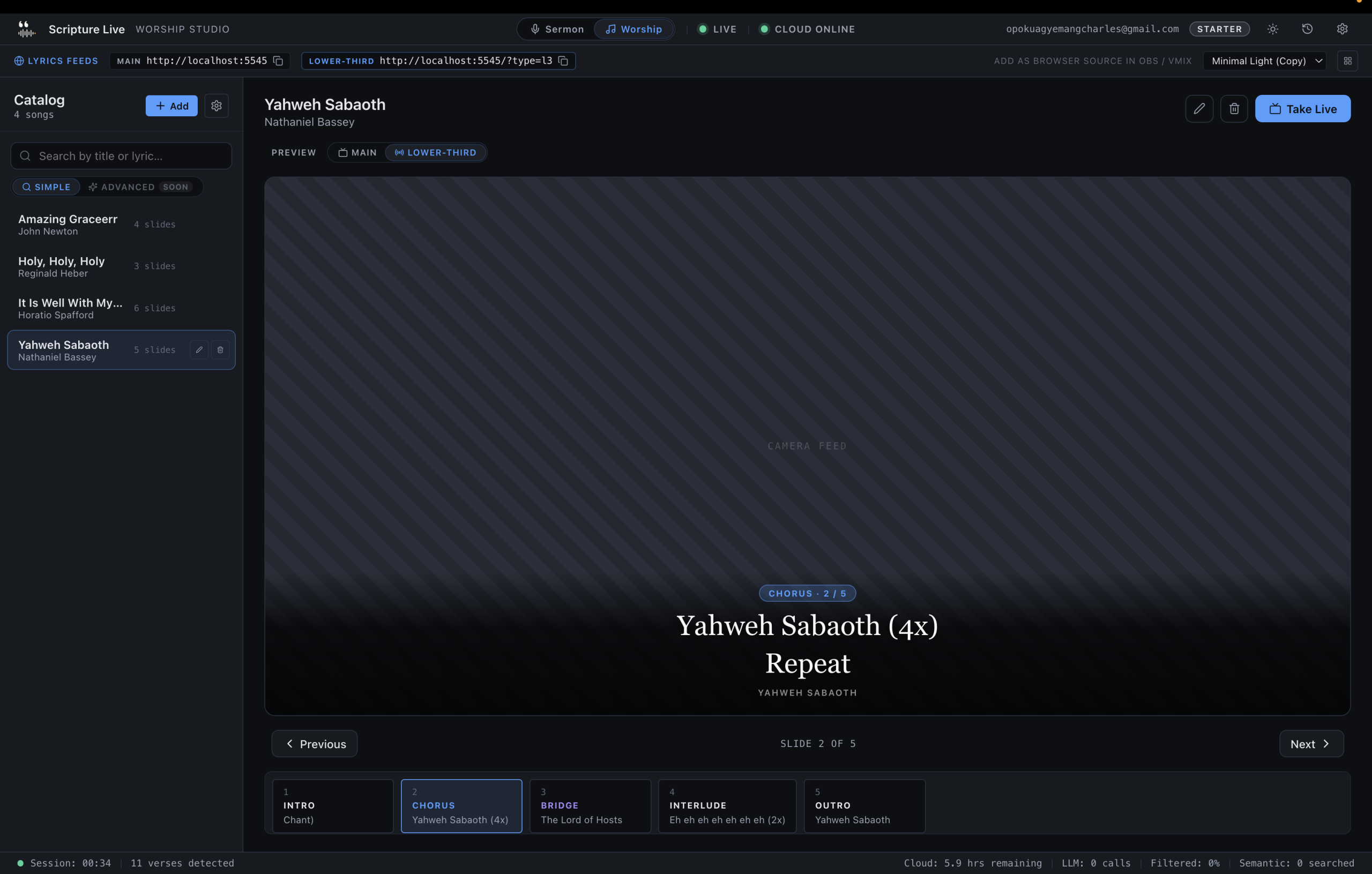
If you’ve been doing this for any length of time you’ve probably tried screen-capturing the projection app, NDI-ing in from a second machine, or just pointing a camera at the in-room projector and calling it a day. None of those are great. This guide walks through a better answer: using an OBS browser source for your church’s scripture feed and a separate browser source for lyrics, both served locally by Scripture Live so they update in real time and route per-scene.
The setup takes about fifteen minutes. The result is broadcast-quality scripture overlays with no screen-capture, no NDI tier upgrade, and no operator coordination across multiple apps.
The streaming-team problem
Before the solution, the actual shape of the problem.
In a typical streaming setup, the in-room projector and the live broadcast are two different surfaces with two different needs:
- The in-room projector shows scripture during sermons and lyrics during worship. It’s optimised for a congregation looking at it from a distance — large fonts, high contrast, simple layout.
- The live broadcast has scenes (worship, sermon, communion, announcements) that need scripture and lyrics overlaid in a way that fits the broadcast aesthetic — usually a lower-third or full-screen overlay that integrates with the camera feed.
Most projection software is built for the projector. The broadcast is an afterthought, and operators end up using one of these workarounds:
- Screen capture the projection window. Brittle. Resolution mismatches. Wrong aspect ratio. The OBS preview shows the operator window header for thirty seconds before someone notices.
- NDI bridge. Better, but requires a paid NDI add-on in some projection tools and a second machine on the network.
- Point a camera at the projector. Genuinely a thing some churches do. Looks exactly as bad as it sounds.
None of these route per-scene. If the broadcast is on the Worship scene, you don’t want scripture overlaid on it; if it’s on the Sermon scene, you don’t want lyrics. The screen-capture and NDI approaches give you one feed with everything mashed together, and the operator has to coordinate the projection app’s output with the OBS scene switch in real time. That breaks under pressure.
There’s a better architecture: two independent feeds, each routed to the scenes that need them.
The Scripture Live solution: two independent browser sources
When Scripture Live launches, it spins up two local web servers on the operator’s machine:
http://localhost:5544— the scripture feed. Real-time updates the moment a verse is detected or manually displayed.http://localhost:5545— the lyrics feed. Real-time updates as the operator advances through worship songs.
These are independent. You can have one on the broadcast and not the other, or both, or different ones on different scenes. They render at any resolution you ask for (browser sources are CSS-driven, not pixel-driven), and they support transparency for overlay use.
The full live-detection pipeline that drives the scripture feed is described in the live detection article. The custom slides, sermon notes, and prayer points that flow through both feeds are described in the slides article. For this guide, what matters is that those two URLs exist and they update live.
Step-by-step OBS setup
OBS users, here’s the exact sequence.
1. Install Scripture Live on the streaming PC
Download from scripturelive.app. The installer is around 600MB. Install on the same machine that runs OBS (or, if your streaming PC is dedicated and you don’t want extra processes on it, install on a second machine on the same network and adjust the URLs to use that machine’s LAN IP instead of localhost).
Launch the app. If you have a paid license, sign in. If you’re on the free tier, skip the sign-in — both browser-source feeds work in Offline Mode.
2. Add the scripture browser source
In OBS, go to your Sermon scene. Add a new source: Browser.
- URL:
http://localhost:5544 - Width: 1920
- Height: 1080
- Custom CSS: leave blank to start. You can override fonts and padding here later if your broadcast aesthetic needs adjustment.
- Shutdown source when not visible: unchecked. You want the source to stay live so it picks up updates even when you’re on a different scene.
- Refresh browser when scene becomes active: unchecked.
Click OK. The browser source appears in the scene. If a verse is currently displayed, you’ll see it. Resize and position it to fit your broadcast layout — full-screen for a “scripture moment,” lower-third for a more subtle overlay.
For a transparent overlay (so the camera shows behind the verse), append ?transparent=true to the URL: http://localhost:5544?transparent=true. The background renders as transparent and OBS composites the verse over the camera feed.
3. Add the lyrics browser source
Go to your Worship scene. Add a new browser source.
- URL:
http://localhost:5545 - Width: 1920
- Height: 1080
Same shutdown / refresh settings as before. Position it as you’d position lyrics — usually lower-third, occasionally full-screen.
For transparent worship lyrics over a camera feed: http://localhost:5545?transparent=true.
4. Don’t add scripture to the worship scene (or vice versa)
This is the whole point. The Worship scene gets the lyrics browser source only. The Sermon scene gets the scripture browser source only. Communion, announcements, outro — pick whichever feed (or neither) makes sense per scene.
When the operator detects a verse during the sermon, it updates the scripture browser source instantly. The broadcast viewer sees the verse. When the broadcast cuts to the worship scene, OBS displays the lyrics browser source instead, which holds whatever lyric was last cued. No operator has to coordinate the two — the architecture handles it.
5. Optional: a permanent overlay scene
If you have a multi-camera setup with one camera permanently focused on the pastor, a useful scene is Pastor + Scripture Overlay: that camera plus the transparent scripture browser source as a lower-third overlay. The verse appears in the corner of the pastor cam without taking the full screen. Great for sermon broadcasts where you want scripture context permanently visible without dominating the frame.
vMix users: same approach, same URLs
vMix’s Web Browser input is the equivalent of OBS’s browser source. Same URLs:
http://localhost:5544for scripturehttp://localhost:5545for lyrics- Append
?transparent=truefor overlay use
Add as a Web Browser input in vMix, set the dimensions, route into the input mixer, and you’re live. vMix’s NDI output workflow is also a fit if you want to send these feeds across machines on the LAN.
Multi-camera scenarios
A few patterns we’ve seen work in larger setups:
Two cameras, scripture on the wide shot. The wide shot of the pastor and stage runs with a lower-third scripture overlay. Close-ups don’t carry the overlay so they feel intimate. The browser source is added only to the wide-cam scene.
Three cameras, scripture as full-screen B-roll. Two camera scenes for live shots, one Scripture scene that’s the full-screen browser source against a clean background. The director cuts to the Scripture scene at moments of emphasis — when the pastor lands on a key verse, the broadcast briefly fills the screen with the verse, then cuts back to the camera.
Worship + lyrics + camera composite. The Worship scene composites a wide camera shot, the lyrics browser source as a lower-third, and a small church-logo bug in the corner. All three layers are independent OBS sources.
The browser-source architecture is flexible because it’s just a web page rendering at whatever size and transparency you ask for. You compose the broadcast in OBS or vMix; Scripture Live just provides the feed.
Pre-service setup checklist
Print this. Run through it before every service.
- [ ] Streaming PC powered on, OBS running.
- [ ] Scripture Live launched and signed in (if on a paid tier).
- [ ] Audio source confirmed in Scripture Live’s Settings → Audio Source. Should match the audio interface that carries the pastor mic.
- [ ] Both browser sources visible in OBS — one in the Sermon scene, one in the Worship scene. Quick test: trigger a verse in Scripture Live’s Reference Search, confirm it appears in the OBS preview of the Sermon scene.
- [ ] Translation set to whatever the pastor will preach from today.
- [ ] Theme set to whatever fits the broadcast aesthetic. The browser source picks up theme changes live.
- [ ] If using transparent mode, confirm the OBS scene composites the verse over a camera feed cleanly.
- [ ] Cue first worship lyric or sermon-bumper slide and verify it shows in the right scene.
- [ ] Hit Start Listening in Scripture Live two minutes before the service begins.
- [ ] Stream live.
Common mistakes
A few things we see streaming teams trip over.
- Putting the scripture browser source on every scene. Scripture stays on screen during the worship set, which is jarring. Scope each browser source to the scene it belongs on.
- Forgetting
?transparent=truefor overlay use. The verse appears with a black or dark background, blocking the camera feed. Append the query string and the background renders transparent. - Using
127.0.0.1instead oflocalhostand getting CORS errors. Both should work; if one doesn’t, swap. - Running Scripture Live on a different machine without adjusting the URL. Replace
localhostwith the LAN IP of the machine running Scripture Live. Make sure the firewall allows OBS’s machine to reach it on ports 5544 and 5545. - Set “Shutdown source when not visible” to checked. This makes the browser source reload every time you switch into the scene, which causes a flicker. Leave it unchecked.
FAQ
Q: Do I need to pay for Scripture Live to use the OBS browser source?
No. Both browser sources work in the free Offline Mode. The paid features unlock live detection from sermon audio; the projector and OBS feed are available in every tier.
Q: Can I use my own CSS to style the browser source?
Yes. OBS’s browser source has a Custom CSS field. Override fonts, colors, padding, or position to match your broadcast aesthetic. The feed renders semantic HTML so the CSS is straightforward.
Q: What resolution should I set the browser source to?
Match your broadcast canvas. 1920×1080 for HD broadcasts, 3840×2160 for 4K. The browser source renders at the resolution you specify — Scripture Live’s CSS scales fonts based on container size.
Q: Can multiple OBS instances on the same network read from one Scripture Live?
Yes, but you’ll need to set up port forwarding or use the LAN IP of the host machine instead of localhost. Multiple browser sources connecting to the same feed all see the same updates simultaneously.
Q: Does the browser source work with vMix, Wirecast, or other broadcasting tools?
Yes. Any tool with a browser-source or web-input feature can render the feeds. URLs are the same: http://localhost:5544 for scripture, http://localhost:5545 for lyrics.
Get started
If you’re a streaming team that’s been hacking around the scripture-on-broadcast problem with screen captures, the fix is fifteen minutes away. Download Scripture Live, drop the two browser sources into your OBS scenes, and run a service. The whole architecture is at https://scripturelive.app.
Related reading
- Setting up the church projector for streaming
- Add scripture overlay to YouTube / Facebook Live
- Church AV setup on a budget
Try Scripture Live
Free Offline Mode includes the KJV and Twi Bibles, reference and phrase search, custom slides, and the OBS browser-source feed — install on as many machines as you want, no account needed.
📥 Download: scripturelive.app
💵 Pricing: scripturelive.app/pricing











Leave a Reply