
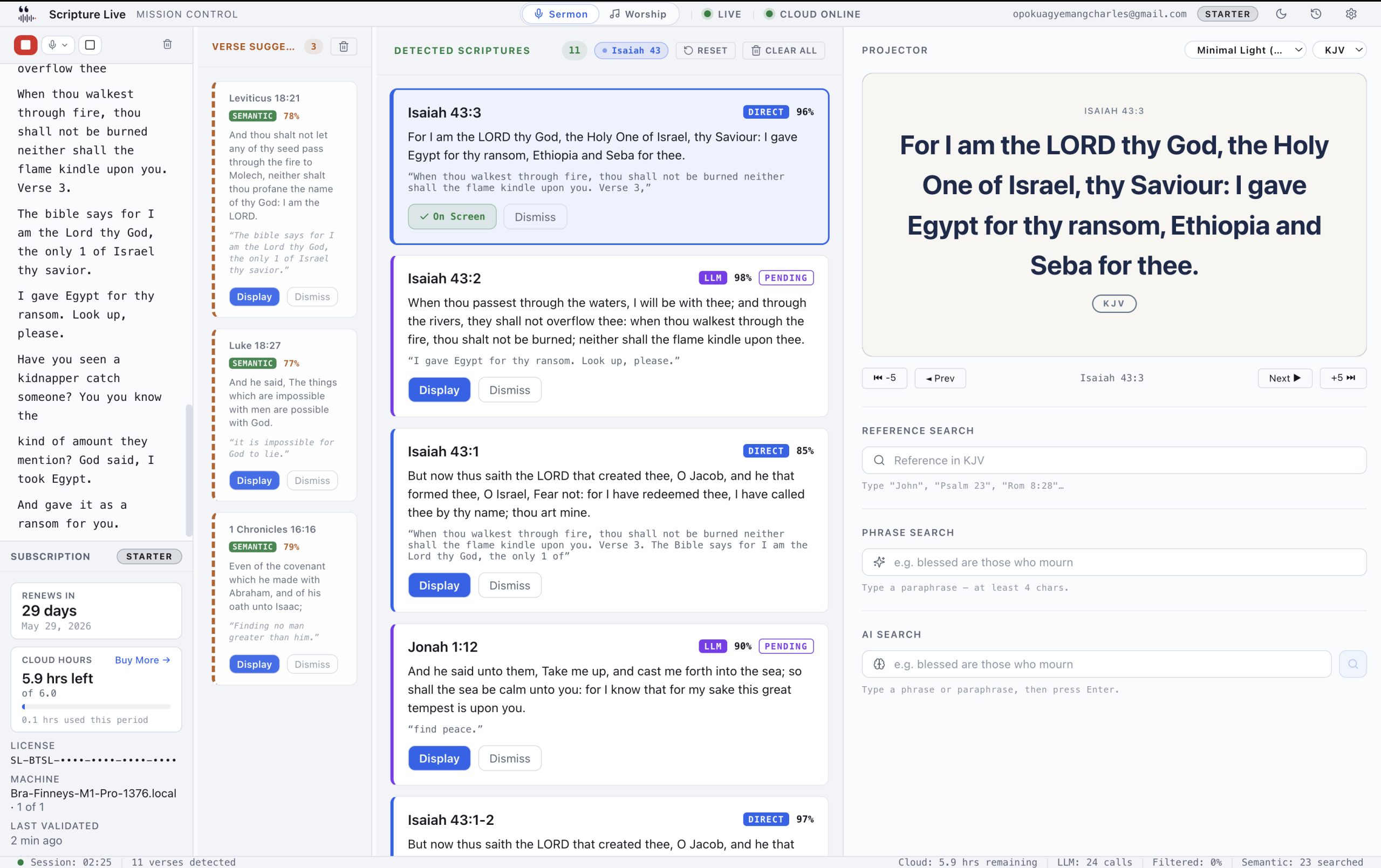
Custom Slides: sermon notes, prayer points, and announcements on the projector
TL;DR
– Three slide types: text (sermon notes / prayer points / announcements), image, and rich.
– One-click display to the projector and the OBS browser-source feed simultaneously.
– Slides persist across sessions; the same slide library powers in-room and streaming.
Look at any church projection setup and you’ll find three kinds of content on the screen.
There’s scripture. Most church-tech tools handle this — it’s the headline feature for ProPresenter, EasyWorship, and us.
There’s worship lyrics. Most tools handle this too. The catalog, the section structure, the sing-along formatting.
And then there’s everything else. Sermon notes. Prayer points. The Mobile Money number for the offering. Announcements. The series title. The “Welcome.” The QR code linking to the visitor connect form. The picture of last week’s baptism that the pastor referenced from the platform.
Almost every church we’ve talked to handles “everything else” with a hack. PowerPoint sitting in another window, Alt-Tabbed to mid-service. A Google Slides deck the operator has to manually advance. A static image saved on the desktop. “Pastor Joe’s whiteboard photo on the projector” is a real thing we’ve watched happen.
Scripture Live v1.1.1 ships Custom Slides — a proper home for everything that isn’t a Bible verse or a worship lyric. Available in the free tier. Available in every paid tier. Same feature, same surface.
This is the deep-dive on what it does and why it works the way it does.
What’s a Custom Slide
There are two kinds. Both live in the operator’s slide library and both display through the same projector pipeline as scripture and lyrics.
Text slides. A title and/or a body. Either alone is fine; we reject only the empty-empty case. Multi-line bodies work — line breaks are preserved on the projector, so you can write actual content, not a single run-on sentence. The text renders in the same theme system that scripture uses, so the visual style matches the rest of your service automatically.
Image slides. Upload a PNG, JPEG, WebP, or GIF up to 10 MB. Pick one of three fit modes (more on those below). The image renders fullscreen on the projector and also feeds the OBS / vMix browser source on localhost:5544 like everything else.
Slides are stored locally on the operator’s machine. They survive restarts. They are not cloud-synced — see the privacy note further down. The library has a search filter that appears once you’ve got four or more entries (no point cluttering the UI for a three-slide service), a 3-row visible cap with scroll, and hover-to-reveal Edit and Delete actions on each card.
What you can actually do with text slides
Worth being concrete here, because “text slide” is a generic concept and the value is in the specific examples.
Prayer points. A pastor calls the congregation to prayer over the church’s missionaries. A text slide titled “Pray for” with the names below — Akua, Kofi, the Tetteh family, the church plant in Ho — projected for sixty seconds. People in the back row can actually see who they’re praying for.
Offering details. This is where most churches get creative and end up with something ugly. A text slide titled “Give” with “Mobile Money: 024 XXX XXXX, MTN MoMo merchant code 12345, USSD: 170#, Bank: GCB Bank, Account 12345678″* below it. Multi-line, structured, readable from across the room. No more “I’ll text you the number after service.”
Today’s theme or series title. “Built for Glory” as a title card before the sermon starts. Project it during the worship-to-sermon transition. Cuts down the “what are we doing today” energy.
Announcements between segments. “Youth fellowship moves to Saturday this week.” “Volunteer for the children’s ministry — speak to Pastor Sarah after service.” You can author six of these on Saturday night and click through them as the announcements flow.
Welcome / closing. A text slide titled “Welcome” with a body line of “We’re glad you’re here” lives on the screen before the service starts. Click to a different slide when the band steps up.
Scripture references for the next service. “Next Sunday — 2 Corinthians 5” — the kind of thing the pastor mentions in passing and the operator wants up for thirty seconds.
You’ll notice a pattern. None of these are scripture. None of these are lyrics. All of them used to live in PowerPoint or in nowhere at all.
Image slides and the three fit modes
Images are where the technical detail starts to matter, because how an image fills the screen depends on what kind of image it is. We give you three options:
Fit. The whole image is visible. The projector aspect ratio (typically 16:9 or 16:10) usually doesn’t match the image’s, so the unused area shows as letterbox / pillarbox bars in the theme background colour.
Pick this when the whole content matters and cropping is unacceptable. QR codes are the canonical example — chop a corner off a QR code and it stops scanning. Same for an infographic, a verse-as-image where the words go to the edges, or any image where the framing was deliberate.
Fill. The image scales to cover the entire screen. The projector loses no real estate to letterboxing, but the image gets cropped on the axis with the wrong aspect ratio.
Pick this when the subject is centred and the edges are decoration. A full-bleed photo of last week’s baptism, a wide landscape of the church campus, a stock photo background for a series-title slide. The eye lands on the middle anyway, and the cropping looks intentional.
Stretch. The image is distorted to match the projector’s aspect ratio exactly. No cropping, no letterboxing, but circles become ovals if the source image was the wrong shape.
Pick this when the image was designed for the projector’s aspect ratio already. A logo banner you exported at 1920×1080. A series-title card a designer mocked up at the right size. A title slide pre-rendered for the screen. Stretch only looks bad when the source was the wrong aspect; when it matches, it’s the most efficient mode.
A small but important detail: in the operator’s slide library, image thumbnails are always centred and contained, regardless of which fit mode they’ll use on the projector. We did that on purpose — the operator’s preview should look the same for every slide, so you’re scanning for content, not for fit-mode artefacts. The projector renders with the chosen mode; the picker doesn’t.
The thing that won’t bite you mid-service
Most operator mistakes happen in the four seconds between “oh, I should show that” and “oh no, I showed the wrong one.” We designed slide selection to defend against that.
Single click selects. A blue ring appears around the card; nothing happens on the projector. You’re now ready to act.
Double click displays. Two clicks within the standard double-click interval push the slide to the projector and the OBS feed.
This sounds tiny and it is the single most important UX decision in the feature. It means the operator can scroll through the library, click slides to read them in detail, hover-edit a typo, and never accidentally project anything. Display is an explicit two-click action. Mid-service mistakes drop dramatically.
The same model applies to scripture and lyrics in the rest of the app, so it’s consistent across surfaces. Once an operator learns the rhythm, every projection is a deliberate act.
Slides override scripture only
Here’s the thing that matters specifically to streaming teams.
Scripture Live runs two independent OBS feeds — localhost:5544 for scripture (and slides) and localhost:5545 for worship lyrics. When a slide goes up, it replaces what’s on the scripture feed only. The lyrics feed is untouched.
This is the difference between a clean broadcast and a janky one. Imagine: the worship band is playing the closing song, the streaming director has the lyrics on the broadcast scene, and the pastor wants a sermon-recap slide on the in-room projector for the people physically in the room. With most tools, that’s a three-way coordination problem ending in “hold the lyrics, swap to slides, swap back.”
With Scripture Live, the in-room operator just clicks to display the recap slide. The lyrics keep flowing on the broadcast. Two parallel feeds, two independent operators, no walkie-talkies.
This was a deliberate architectural choice from the day we shipped the second OBS feed, and Custom Slides slot into it cleanly. If you’re not running a stream, you don’t have to think about this; the in-room projector behaves exactly like you’d expect.
Stored locally. Not cloud-synced. On purpose.
Slides are stored on the operator’s machine. They are not cloud-synced. We hear the question often enough that it’s worth answering directly.
Why local. Sermon notes are private until they aren’t. A draft prayer-points list with the names of people facing real things — illness, conflict, transition — should not exist on a third-party server. A slide with the church’s bank account and Mobile Money number shouldn’t either. We keep the surface area small: it’s on the operator’s laptop, it’s backed up by whatever backs up the operator’s laptop, and that’s it.
Why not synced. Cross-machine sync is a feature we’ll consider when we have a clean answer for the privacy question above. Right now, if you have two operators using two laptops, each operator manages their own slide library. For most churches that’s fine — one AV operator handles a service end-to-end. For larger production teams it’s a known limit, and we’ll get there.
In the meantime, you can copy the app’s data folder manually if you want to move slides between machines — it lives at ~/Library/Application Support/scripture-live/ on macOS, with equivalent paths on Windows and Linux.
Free version too
This is worth saying explicitly because it surprises some people. Custom Slides is in the free tier. The full feature set — text slides, image slides, three fit modes, the projector pipeline, the OBS feed, the search filter, the edit / delete UI. Identical to what paying customers get.
We made that call deliberately. The free tier exists because some churches don’t have budget for cloud projection software, and those churches still have prayer points, offering details, and announcements that should look professional on a screen. Gating Custom Slides behind a paywall would have made the free tier look like a teaser instead of a real product.
If you’re already running the free version of Scripture Live, update to v1.1.1 and the slides feature is there. New library tab in the operator window, ready to use.
A short list of what’s still on the roadmap
In the spirit of being honest about limits:
- Drag-to-reorder. Slides currently sort by edit time (most recently edited at the top). We know operators want manual ordering for service-flow control. It’s coming.
- Text formatting controls. Right now text slides render in the active theme’s font, size, and colour. Per-slide formatting overrides aren’t there yet.
- Cross-machine sync. See the privacy note above. We’ll get there.
- PDF / PowerPoint import. Not on the immediate roadmap. The honest answer is most slides our users author are short and faster to type than to import. We’ll revisit if usage tells us otherwise.
Where to start
If you’re already running Scripture Live, update to v1.1.1 and look for the Slides tab in the operator window. Author a few text slides with the things you usually project — the offering details, today’s series title, your most-used prayer points — and have them ready for Sunday.
If you’re not running Scripture Live yet, install it. Free version, no account, no internet. Custom Slides ships with the installer.
Download → scripturelive.app/download
Related reading
- Display offering QR codes on the projector
- OBS browser source guide
- Bible verses on the projector live
Try Scripture Live
Free Offline Mode includes the KJV and Twi Bibles, reference and phrase search, custom slides, and the OBS browser-source feed — install on as many machines as you want, no account needed.
📥 Download: scripturelive.app
💵 Pricing: scripturelive.app/pricing











Leave a Reply