
How to put Bible verses on the projector live during a sermon
TL;DR
– Manual reference search works on the free tier — type “John 3:16” and click Display.
– Live detection (paid) listens to the sermon audio and queues verses for the operator automatically.
– Browser-source feed at localhost:5544 mirrors the projector to OBS instantly — no screen capture.
You’ve been handed the projector. Maybe last Sunday the pastor mentioned that the screen behind him was always two verses behind, or maybe the previous tech lead just left, or maybe you volunteered without quite knowing what you were signing up for. Either way: there’s a service this Sunday, there’s a projector in the sanctuary, and somebody needs to make Bible verses appear on it the moment the pastor reads them.
This guide walks through how to put Bible verses on the projector live during a sermon — not the way it’s been done for the last decade, but the way it should be done now. There’s a modern way, it costs less than most people assume, and a first-time operator can have it working before lunch.
We’ll cover what doesn’t work, what does, and the exact step-by-step setup so you don’t have to figure it out at 6am on Sunday.
The two old approaches that don’t work
Before we get to the right way, it’s worth being honest about why the obvious approaches break.
Approach 1: typing references into PowerPoint or Word.
The operator sits in the back row with a laptop. The pastor says “turn with me to Romans chapter eight, verse twenty-eight.” The operator opens a search bar, types Romans 8:28, copies the verse text from a Bible website, pastes it into a slide, switches to presentation mode, and clicks forward.
This takes anywhere from six to twelve seconds in the best case. By the time the verse is on screen, the pastor is already explaining the verse after it. And if the pastor paraphrases — “be still and know that I am God” without saying Psalm 46:10 — the operator has to recognise the reference, find it, and only then start typing. That can stretch to thirty seconds.
It also turns the operator into a transcription machine for an hour. They stop hearing the sermon. They’re just listening for references.
Approach 2: pre-made slide decks the operator switches through.
The pastor sends references in advance. The operator builds a slide deck with every verse pre-rendered. On Sunday, they click Next in time with the sermon.
This works exactly until the pastor goes off-script. Which is most Sundays. The moment the pastor adds “and look back at verse seventeen for context”, the deck is wrong, the operator panics, and you’re back to typing.
Neither approach scales. They were designed when projection software was a faster typewriter. We can do better.
What a modern solution actually looks like
The right architecture for live scripture projection has three pieces:
- Live detection. Software that listens to the sermon through a microphone, transcribes it, and recognises Bible references the moment they’re spoken — including paraphrases.
- A manual fallback. A search bar the operator can use when the detector misses something or the pastor wants a verse from a different translation.
- A clean output to both the in-room projector and the live stream. No screen-sharing hacks; no fragile screen-capture overlays.
That’s the shape of Scripture Live, the desktop app this guide is going to walk you through. It’s free to download, the full Offline Mode is permanent and unlimited, and the live-detection pipeline is the paid feature that actually moves the bottleneck.
If you want the deeper technical story before installing, the case for live detection is a good starting read. If you want to see what runs without any internet at all, Offline Mode covers the free tier in detail.
Step 1 — Download and install
Head to scripturelive.app and download the build for your operating system. The Mac installer is a .dmg, the Windows installer is a .exe, and there’s a Linux .AppImage for the Linux operators among you.
The installer is around 600MB because it ships the Bible database, the on-device search index, and bundled fonts so the projector renders correctly with no internet. That’s a one-time download. After install, the app launches in seconds.
You don’t need an account to use the free tier. If you plan to use live detection on Sunday, sign in with email, Google, or Apple — that links the install to a license.
Step 2 — Connect the projector
Plug the projector into your operator machine via HDMI. macOS and Windows will recognise it as a second display. You don’t need to mirror the screens; Scripture Live is designed for extended displays, where the operator window stays on the laptop and the verse output goes to the projector.
Open Scripture Live. In the operator window, click Output in the top bar. You’ll see a list of every connected display, including the projector by name. Pick the projector. The borderless fullscreen verse window appears on it instantly.
If your operator booth doesn’t run the projector directly — for example, if you’re feeding into a video switcher or going through a streaming PC running OBS — skip the Display picker and use the browser-source feed instead. Scripture Live runs a local web feed at http://localhost:5544 from the moment it launches. Add that URL as a Browser Source in OBS or a Web Input in vMix, set the resolution to match your scene (1920×1080 is standard), and the same verse output that goes to the projector now appears in your stream.
You can do both at once. The Display picker output and the browser-source feed update simultaneously.
Step 3 — Pick a translation
Click Settings → Translation. The free tier ships with KJV and Twi (Akan). Paid tiers add NIV at the Starter level, plus AMP, ASV, BSB, ESV, MSG, NET, NKJV, NLT, RSV, and TPT at the Team and Church tiers.
The translation you pick is the default for both detection and manual search. Your operator can switch translations live during a service via a dropdown in the top bar — useful if the pastor says “in the NIV that reads as…” and you want to swap.
Step 4 — Set up the audio input
For live detection, the app needs the sermon audio. There are two ways to feed it in:
- Direct microphone. If your laptop is in the room with the pastor and a USB mic is plugged in, point Scripture Live at it via Settings → Audio Source. This works for small rooms.
- System audio capture. If your sound desk runs into the laptop via a USB audio interface, pick that interface as the input. Now Scripture Live hears whatever the sound system hears.
For most churches, option two is the better one. The audio quality is cleaner, and the operator can keep the laptop in the booth even if the pastor is fifty feet away.
Step 5 — Hit Start
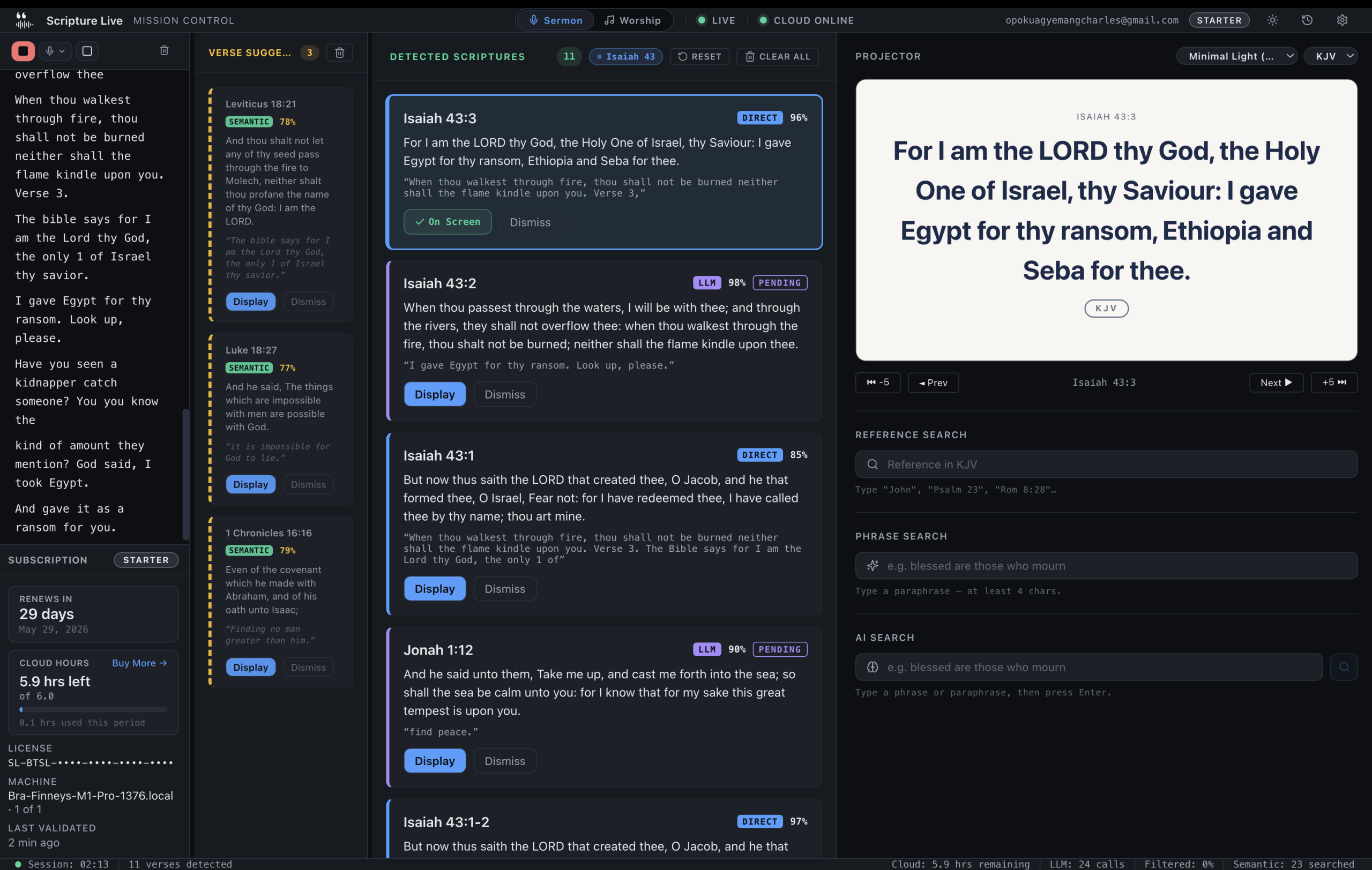
In the operator window, click the big Start Listening button. The status bar lights up green. The transcript pane on the left starts filling with what the pastor is saying. The detection column on the right starts populating as references are recognised.
That’s it. You’re live.
What the three-layer detection actually does (without the jargon)
The interesting bit, even for a non-technical reader, is how the app catches references at human-conversational speed. It runs three layers in parallel on every chunk of transcript:
- The Pattern Layer catches direct, well-formed references — “John three sixteen,” “Romans chapter eight verse twenty-eight,” “second Timothy three sixteen and seventeen.” This runs on-device, in under fifty milliseconds. When it fires with high confidence, the verse is on screen before you blink.
- The Semantic Layer catches paraphrases and partial quotes — “the Lord is my shepherd, I shall not want.” It runs on-device against a neural verse index built over the entire Bible. Still no internet required.
- The Reasoning Layer handles the hardest cases — heavy paraphrase, theological allusion, references the pastor builds across a sentence. This is the only layer that uses the cloud, and it’s metered by the hour because cloud reasoning costs real money.
There’s one rule we don’t compromise on: the Reasoning Layer never auto-displays. It puts suggestions in an approval queue, and the operator confirms with a single click. The first two layers can auto-display when they’re confident. That distinction is what keeps the system from being embarrassing on stage.
The operator’s role during a service
You might wonder: if the software does the detection, what does the human do?
Plenty. The operator’s job changes from typing-stenographer to editor-in-charge:
- Watch the suggestion queue. Anything from the Reasoning Layer needs a human nod. It’s usually one click per suggestion.
- Manual search for paraphrases the system misses. No detection pipeline is perfect. If the pastor says something the system doesn’t catch, the operator can type a phrase into the search bar and get a verse back.
- Switch translations on demand. If the pastor pivots, the operator drops the dropdown and changes translations.
- Cue worship lyrics and custom slides. Sermon notes, prayer points, offering details, series art. The same app handles all of it — there’s a whole article on the slide system.
- Hit Pause / Resume. Between services, between segments, when the pastor takes a beat for a story unrelated to a verse.
The operator stops listening for transcription cues and starts listening as a person again. Most operators say the first Sunday with the system is the first Sunday in years they actually heard the sermon.
What if you don’t have stable internet?
Two scenarios.
Scenario A: your internet is intermittent but exists. Live detection needs the cloud transcription feed and the Reasoning Layer; both depend on internet. If your connection drops mid-service, the app degrades gracefully — the in-room projector keeps showing whatever’s currently on screen, and the operator can fall back to manual reference search until the connection returns. Verses you’ve already shown stay on screen.
Scenario B: you don’t have internet at all. This is what Offline Mode is built for. Without signing in, Scripture Live runs as a free, permanent Bible projection tool. You get reference search, phrase search powered by the on-device Semantic Layer, custom slides, the projector window, and the OBS feed. The only thing you lose is live detection from sermon audio.
We covered this in detail in the Offline Mode write-up, but the short version: the free tier is a complete product, not a trial. Many churches start there, get comfortable with the workflow, and upgrade later when they want the live detection.
Common first-Sunday mistakes
A few patterns we see from new operators:
- Forgetting to start the listener. The transcript pane stays empty. Always check the green status indicator before the service begins.
- Audio source pointing at the wrong device. If the laptop has multiple inputs, the system might default to the built-in mic, which picks up booth chatter instead of the pastor. Verify in Settings → Audio Source.
- Output not assigned to the projector. The Display picker has to be set every cold-launch. Add it to your pre-service checklist.
- Translation set to KJV when the pastor is preaching from NIV. Easy to miss in the first service. The verse text on screen should match what the pastor reads aloud.
- Treating the suggestion queue as auto-accept. The Reasoning Layer suggestions need a click. Don’t just stare at them.
A ten-minute pre-service rehearsal kills almost all of these.
FAQ
Q: Can I use Scripture Live without an internet connection?
Yes. The free tier (Offline Mode) runs entirely on-device with KJV and Twi Bibles bundled in the installer. You get reference search, phrase search, custom slides, projector output, and the OBS feed. Live detection from sermon audio is the paid feature that requires internet.
Q: How fast does the verse actually appear on screen?
For direct references caught by the Pattern Layer, well under a second from the moment the pastor finishes saying the reference. For paraphrases caught by the Semantic Layer, one to two seconds. For Reasoning Layer suggestions, three to five seconds plus a one-click operator confirm.
Q: Do I need a separate laptop for the projector and for streaming?
No. One operator machine handles both. The Display picker drives the in-room projector, and the local browser-source feed drives OBS or vMix on the same machine.
Q: What if the pastor uses multiple translations in one sermon?
The operator can switch translations live via the dropdown in the top bar. Paid tiers ship NIV, ESV, NIV, NLT, MSG, AMP, NKJV, and more — switching is instant.
Q: What’s the cheapest way to start?
Download the free version at scripturelive.app and install it on whatever laptop is in your booth. Connect the projector via HDMI, set the Display picker, and use Reference Search. That’s a working scripture projection setup at zero cost.
Get started
Putting Bible verses on the projector live during a sermon used to mean an operator typing as fast as they could. It doesn’t anymore. Download Scripture Live at https://scripturelive.app, install it on your booth machine, and you’ll have a working setup before your next service.
Related reading
- How live scripture detection works
- Setting up the church projector step by step
- Custom slides: sermon notes + prayer points
Try Scripture Live
Free Offline Mode includes the KJV and Twi Bibles, reference and phrase search, custom slides, and the OBS browser-source feed — install on as many machines as you want, no account needed.
📥 Download: scripturelive.app
💵 Pricing: scripturelive.app/pricing











Leave a Reply