
How to add a scripture overlay to your YouTube Live or Facebook Live church stream
TL;DR
– Browser source feed atlocalhost:5544?transparent=trueoverlays verses on the camera scene.
– Independent of in-room projector — streaming director and in-room operator don’t need to coordinate.
– Works on YouTube Live, Facebook Live, and any RTMP destination via OBS or vMix.
The streaming team’s secret is that the online congregation isn’t watching the same service the in-room congregation is. They’re watching a video of it, mediated by a phone screen, often with the audio playing in a kitchen or a car. The cues that work in a sanctuary — pastor pointing at the screen, congregation flipping to the verse in their physical Bibles — don’t reach the viewer at home. So when you add a scripture overlay to your YouTube Live or Facebook Live church stream, you’re not duplicating what’s on the in-room screen; you’re solving a different problem entirely.
This guide walks through the actual setup. We’ll assume you’re already streaming — OBS, Streamlabs, or vMix already running, scenes already configured, RTMP key already in YouTube Studio or Facebook Producer. What you want to add is a layer that puts the spoken or selected scripture reference on top of the broadcast, in a way that looks intentional and doesn’t break when the pastor improvises.
If you haven’t built the streaming setup yet, our setting up a church projector for live streaming step-by-step guide is the better starting point. Come back here once your stream is live and your Sunday service is going out the door.
Why scripture overlays matter for online viewers
In the room, scripture on the projector is a backup — most of the congregation can hear the pastor and many have a Bible open. Online, the projector is invisible. The streaming camera is usually pointed at the pastor or the worship band, not the screen, and even if a wide shot catches the projector the resolution drops and the text is unreadable.
Three things change for the online viewer when you add a scripture overlay:
- Engagement. Watch retention measurably increases when a verse appears on screen during a sermon — the viewer sees something new, the brain re-engages.
- Accessibility. Hard-of-hearing viewers, viewers with the audio muted in a public space, and viewers in noisy kitchens read the verse instead of straining to hear it.
- Searchability. Verses on screen are extracted by YouTube’s auto-caption pipeline and become searchable. People find sermons via verse references.
The overlay is also a different visual treatment than the in-room display. A 1080p stream pinned in a phone-sized portrait window has different typography needs than a sanctuary projector seen from forty feet. We’ll cover that.
The setup at a glance
The architecture is identical regardless of which streaming software you use:
Sermon audio ──► Scripture Live ──► Browser source URL ──► OBS / Streamlabs / vMix ──► YouTube / Facebook / Vimeo
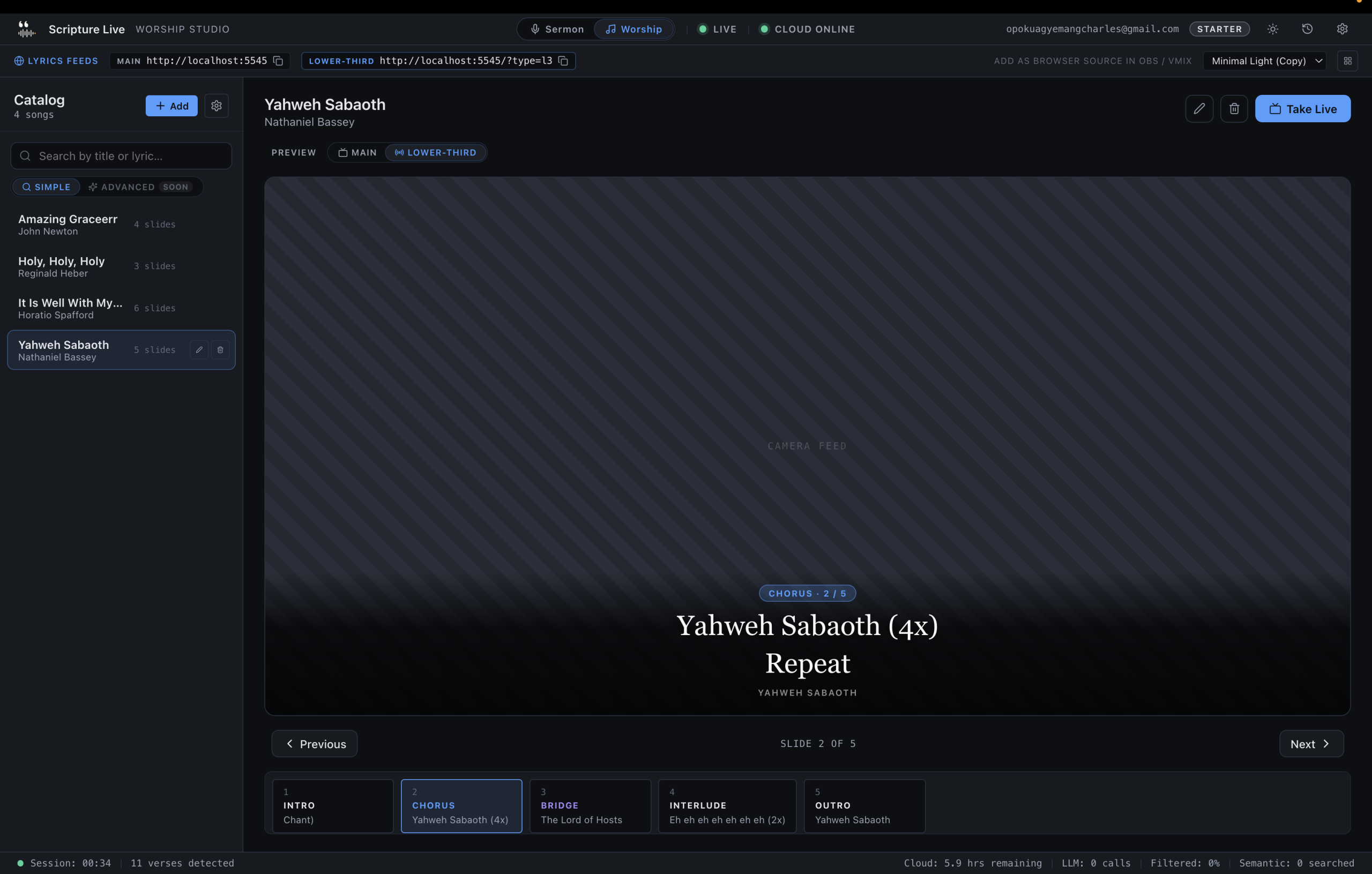
Scripture Live runs as a desktop app on the streaming computer (or any machine on the same network). It exposes two browser-source URLs by default — one for scripture (http://localhost:5544) and one for lyrics (http://localhost:5545). Your streaming software adds those URLs as Browser Sources, which appear as transparent overlays on top of the camera feed.
If you’re new to the OBS browser-source workflow specifically, our OBS browser-source guide for church scripture and lyrics streaming covers the foundations in more depth. The short version is below.
Walking through the OBS / Streamlabs setup
We’ll use OBS as the example because it’s free, runs everywhere, and the workflow is identical in Streamlabs (which is a fork) and similar in vMix.
1. Add a Browser Source for scripture.
– In OBS, in the Sources panel of your Sermon scene, click + → Browser Source.
– Name it Scripture Overlay.
– URL: http://localhost:5544?transparent=true (the transparent flag matters — without it you get a black background that hides the camera feed underneath).
– Width: 1920. Height: 1080. (Or match your stream resolution.)
– Leave “Refresh browser when scene becomes active” unchecked — Scripture Live updates in real time, you don’t want OBS reloading the page mid-verse.
2. Add a second Browser Source for lyrics.
– Repeat for your Worship scene. URL: http://localhost:5545?transparent=true. Same dimensions.
– The two URLs are independent — verses appear on the scripture feed regardless of what the lyrics feed is doing, and vice versa.
3. Position the overlay.
– Drag and resize the source within the OBS canvas. For lower-third treatment, keep it at native size and position it across the bottom third. For full-screen scripture (sermon climax moments), scale it to fill the canvas.
– Lock the source once you’ve positioned it — accidentally bumping it during the service is a real failure mode.
4. Test before broadcast.
– In Scripture Live, manually search for a verse and click Display.
– The verse should appear in your OBS preview within ~400ms (the default fade transition).
– If you see a black background where the verse should be, the ?transparent=true parameter is missing or misspelled.
That’s the whole setup. It takes about five minutes the first time and thirty seconds every Sunday afterward.
Scene presets: Sermon scene, Worship scene, Announcement scene
The cleanest streaming workflows we see use scene presets that match the service rhythm. Each scene has the right overlay layered in, and the streaming operator switches scenes at the natural transitions instead of toggling sources.
Sermon scene.
– Camera: pastor (close or medium shot)
– Audio: sermon mic
– Browser Source: http://localhost:5544?transparent=true (scripture overlay)
– Optional lower-third: pastor name + sermon title
Worship scene.
– Camera: worship band (wide shot or rotating cameras)
– Audio: full FOH mix
– Browser Source: http://localhost:5545?transparent=true (lyrics overlay)
– Optional: song title lower-third (handled by Scripture Live or by OBS, your choice)
Announcement scene.
– Camera: wide sanctuary or branded backdrop
– Browser Source: http://localhost:5544?transparent=true (Custom Slides feed)
– Custom Slides display offering details, event reminders, prayer requests
Pre-service scene.
– Looping countdown or branded image
– No overlays
– Pre-roll music
The benefit of the scene-preset model is that the operator’s job during the service collapses to one decision per transition: which scene? Not “which source do I toggle?” — which is exactly the kind of decision that goes wrong at minute fifty-three of a ninety-minute service.
Lower-third versus full-screen scripture
You have two visual treatments for the scripture overlay, and they communicate different things:
Lower-third (verse pinned to the bottom of the frame). The default for most of the sermon. The pastor stays visible, the verse appears below them, both reach the viewer at once. Lighter visual treatment — semi-transparent background, smaller type, appears and disappears smoothly as references fly by.
Full-screen (verse fills the broadcast). Saved for sermon climax moments — the key text the pastor wants the camera to dwell on. Heavier visual treatment — full background, large type, longer dwell time. The streaming operator switches scenes (or toggles a source) at the pastor’s cue.
Scripture Live’s default is lower-third with a fade transition, which is the right baseline for 95% of service moments. Full-screen treatment is a deliberate choice for specific verses, not the default behavior.
For broadcast, set the projector theme on the streaming computer to one of the dark themes — the typography reads better at YouTube compression bitrates than the warm theme does. Test this with an actual recording, not just the preview window.
Common mistakes (and how to avoid them)
We’ve debugged a lot of streaming setups over the past year. The same five mistakes account for most of the failure modes.
Mistake 1: forgetting ?transparent=true. Without it, the browser source has a black or white background that covers the camera feed. The fix is in the URL.
Mistake 2: resolution mismatch. OBS canvas at 1920×1080 but the browser source set to 1280×720, or vice versa. Verses appear scaled or pixelated. Match the browser source dimensions to the canvas dimensions — full stop.
Mistake 3: scene scripts that point to the wrong source. Streamlabs and vMix support keyboard hotkey scenes; if you’ve set up Scene 1 to show the scripture overlay but Scene 2 forgot to include it, your sermon scene works and your post-sermon-prayer scene shows nothing. The fix: when you build a new scene, copy from an existing scene rather than starting from scratch.
Mistake 4: putting the streaming computer on different Wi-Fi than the detection laptop. If Scripture Live runs on Laptop A and OBS runs on Laptop B, the browser source URL has to be http://[Laptop-A-LAN-IP]:5544, not http://localhost:5544. And both machines have to be on the same Wi-Fi network. The fix: most streaming teams run Scripture Live and OBS on the same computer. If you must split them, use wired Ethernet and a static LAN IP.
Mistake 5: not testing before broadcast. This sounds basic but it’s the most common one. The fix: every Sunday morning, do a full mock-broadcast at 9 AM — load the sermon scene, manually display a verse, confirm it shows up in the preview, switch scenes, switch back. Five minutes of preflight prevents an hour of frustration when you go live.
A pre-broadcast checklist
Tape this to the back of the streaming laptop. Run it every Sunday.
- [ ] Scripture Live launched and signed in
- [ ] Network Remote Operator paired (if used)
- [ ] OBS / Streamlabs / vMix launched, correct profile selected
- [ ] Browser sources for
:5544and:5545showing in preview - [ ]
?transparent=trueconfirmed in both URLs - [ ] Test verse displayed and visible in OBS preview
- [ ] Audio levels confirmed at the mixer (sermon mic peaking near -12 dB)
- [ ] Stream key valid in YouTube Studio / Facebook Producer
- [ ] Internet uplink stable (at least 5 Mbps upload)
- [ ] Scene transitions tested (sermon → worship → announcement)
- [ ] Recording started locally as backup (in case the stream drops)
FAQ
Do I need a separate computer for streaming? No, but it helps. Running Scripture Live, OBS, the camera capture, and the live stream on the same laptop works for small services. For mid-size to large productions, separating Scripture Live (detection + display) from OBS (camera switching + encoding) onto two computers reduces the risk that one process spikes CPU and drops frames.
Can I overlay scripture on a pre-recorded sermon? Yes. OBS plays back recorded video as a source like any other. Run Scripture Live during the recorded playback, manually display verses at the right moments, and the overlay appears the same way it would for a live service. Some churches use this for “rebroadcast” services for time-zone-distant viewers.
What about copyright on translations? Live displaying verses on a stream is generally fine under fair-use exceptions for religious broadcasting, but specific translations (NIV, ESV, NLT) have their own rules. KJV and TWI are public domain or freely licensed; the rest are licensed through Scripture Live for paid tiers. If your stream is monetized at scale, talk to your translation publisher.
Will the overlay show up if someone watches the recording later? Yes. The browser source is composited into the broadcast video before it leaves your computer, so the overlay is baked into the YouTube VOD or Facebook recording.
Does this work for Twitch, X (Twitter) Spaces, or Vimeo? Yes for Twitch and Vimeo — both accept RTMP from OBS the same way YouTube and Facebook do. X video streaming uses a different ingest, but the principle is the same: any platform that takes OBS’s encoded output gets your scripture overlay automatically.
The browser-source workflow is the reason streaming teams switch to Scripture Live. Lyrics on one feed, scripture on another, both transparent, both updating in real time, both controllable from the same booth. You can try the free version at scripturelive.app and have the overlays running through OBS in under thirty minutes — the streaming feeds aren’t paywalled, only the live detection that drives them is.
Related reading
Try Scripture Live
Free Offline Mode includes the KJV and Twi Bibles, reference and phrase search, custom slides, and the OBS browser-source feed — install on as many machines as you want, no account needed.
📥 Download: scripturelive.app
💵 Pricing: scripturelive.app/pricing












Leave a Reply